





Basic computer course (Microsoft Office)
Course Overview
|
Particulars |
:- |
Details |
|
Course Duration |
:- |
3 Months |
|
Total Hours |
:- |
120 Hours |
|
Software Covered |
:- |
MS Word , MS Excel, MS Powerpoint |
|
Objective |
:- |
To develop fundamental computer skills and knowledge of MS Office tools. |
Paint
Introduction to PowerPoint
- Shapes(Rectangle, Circle, Polygon, Line)
- Color Picker and Text tool
Creative Praticals
- Draw a lotus flower using shapes and colors
- Create bank logos such as:
-
- HDFC bank logo
- Axis bank logo
- SBI logo
Lotus
SBI
AXIS Bank
HDFC Bank
Microsoft word
- Introduction to microsoft word, features and uses
- Understanding the word interface (Tital bar, Ribbon, Status bar,etc.)
- Creating, saving, and opening a document
Basic editing
- Cut, Copy Paste
- Undo and Redo
- Find and Replace
Formatting text
- Font style, size and color
- Bold, Italic, Underline, Srikethrough
- Text alignment (Centre, Left, Right, Justify)
- Line and paragraph spacing
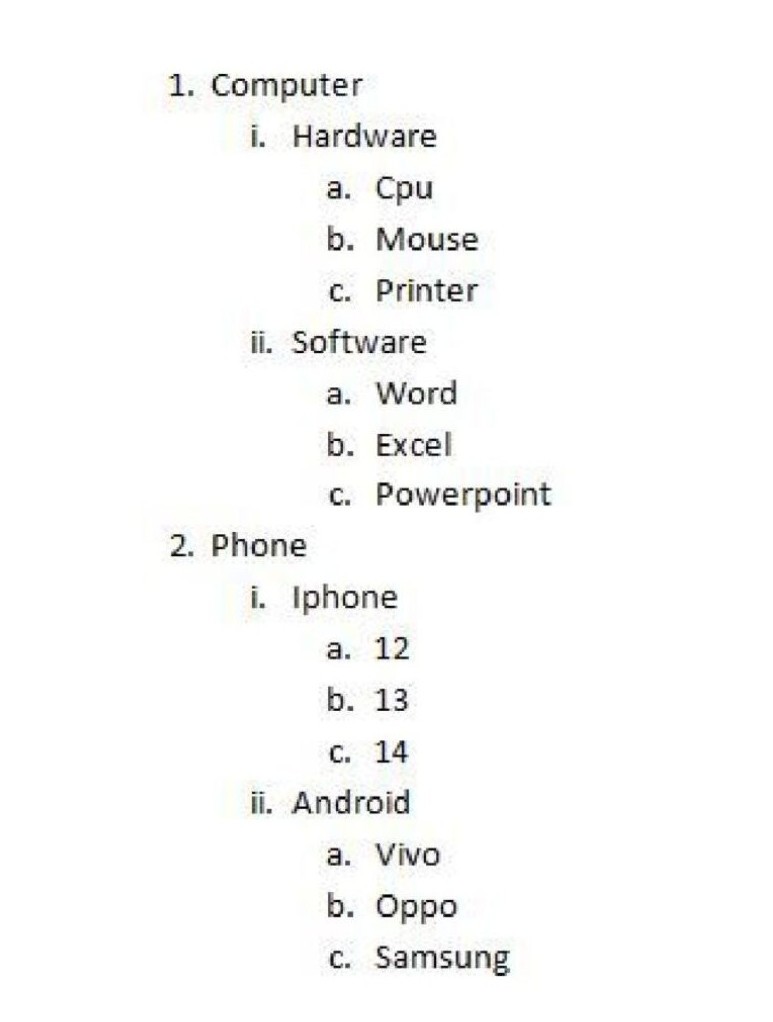
- Bullets and numbering
- Multilevel list and Sorting
Practicals
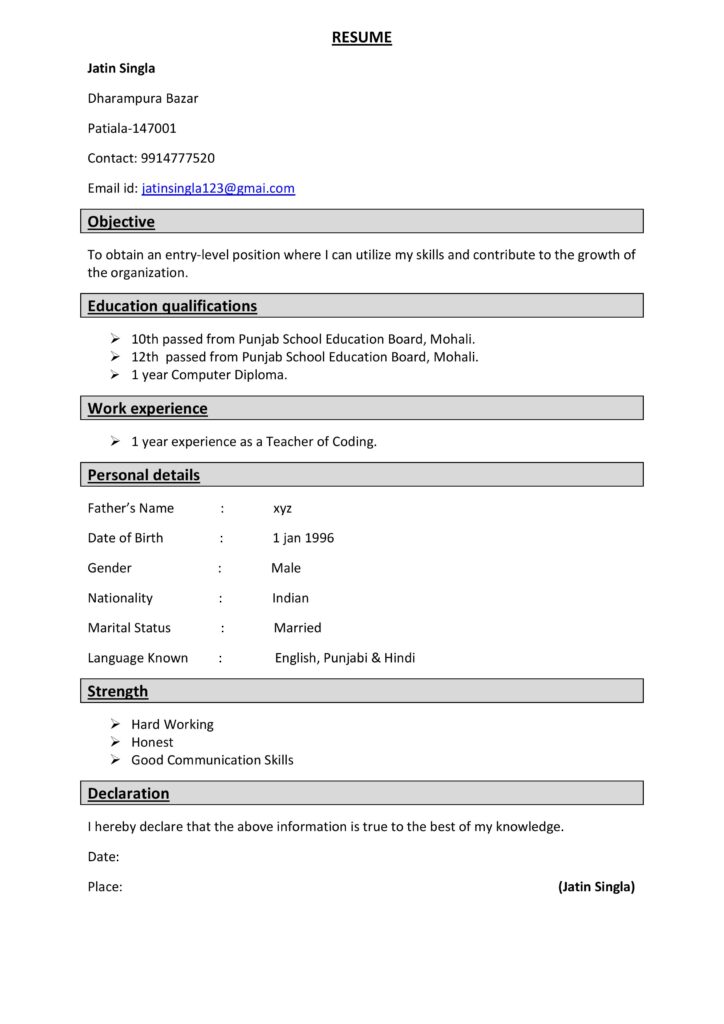
- Design a Resume
- Create a formal letter
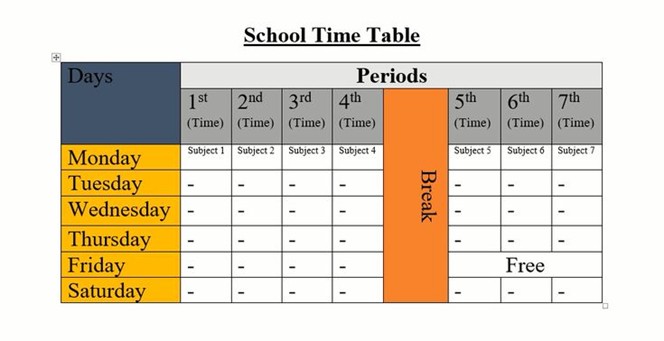
Tables
- Creating and formatting tables
- Merging and splitting cells
- Inserting and deleting rows/columns
- Table styles
Inserting objects
- Pictures, and Shapes
- Hyperlink, Cross-Reference
- Header and Footer
- WordArt and Object
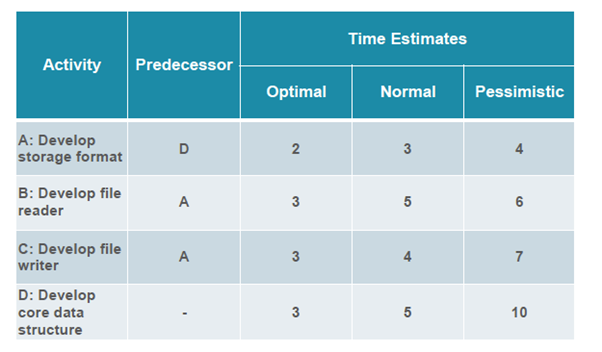
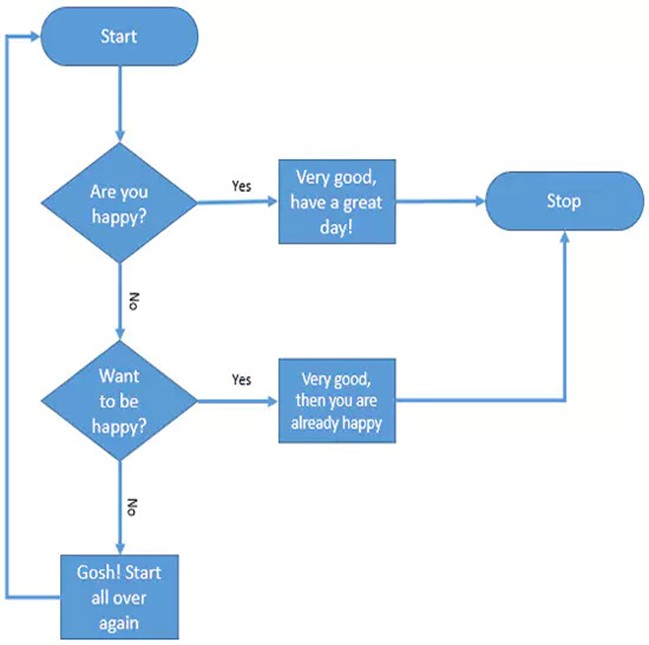
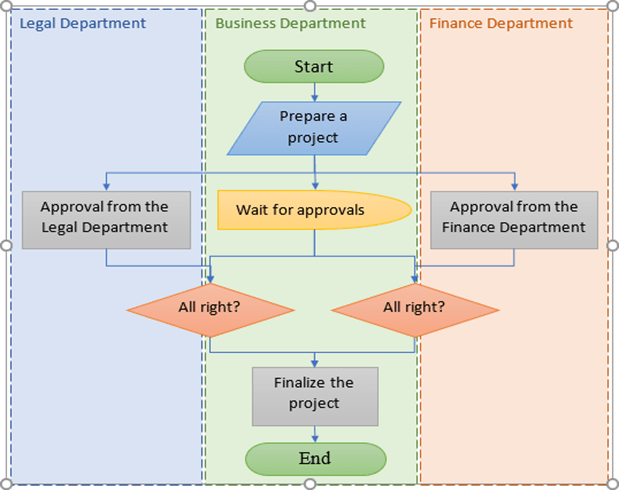
- Creating flowcharts
Page layout
- Margins, Orientation
- Page size and Columns
- Page borders, Colors
- Watermark and Section breaks
Refrences
- Table of Contents
- Endnotes and Footnotes
- Citations and Bibliography
Mailings
- Letters and Evelopes
- Write and Insert fields
- Finish and Merge
Review
- Spelling and Grammar
- Thesaurus and Word count
- Track changes and Comments
- Compare and Protect documents
View
- Print layout and Web layout
- Rulers and Thumbnails
- Zoom, New window
- Macros
Proofing
- Spelling and grammar
- Auto correct options
- Language
- Translate
Excel
- If marks in cell B2 are greater than or equal to 35, then show “Pass” otherwise “Fail”.
- If age in cell A2 is 18 or above, then display “Eligible” otherwise “Not eligible”.
- If revenue is greater than cost, then show “Profit” otherwise “Loss”.
- If value is greater than 0, then display “Positive” otherwise “negative”.
- If marks is greater than 90 display grade as “A”,if marks > 80, “b”, if marks > 70, “c”, if marks >60, “d”, if marks >50, “d” otherwise “fail”.
- If employee salary is less than 20,000 then show commission 5%, if salary is less than 50,000 then show 10%, otherwise 15%.
- If an employee’s leave is more than 2 days, the salary should be deducted, otherwise they should receive their full salary.
- If there are two values, and the sum of those two values is greater than 1000, then a 10% calculation will be applied; otherwise a 5% calcualtion will be applied.
If the two values are 600 and 500, what percentage calculation will be applied? - If A is greater than B, it should display “A greater”, if B is greater than A, it should display “B greater”, otherwise it should display “Equal”.
- If Account No. 1 is the same as Account No. 2, it will show “match”, otherwise it will show “doesn’t match”.
- If the person has a visa, has a passport, and the ticket amount is more than 35,000 then it will show “Eligible”, otherwise it will show “Not Eligible”.
- If both values are greater than 50, it will show “yes”, otherwise it will show “no”.
- If either of the two values is greater than 2600, it will display “Qualified” otherwise the cell will remain blank.
- If the department is either Finance or Operational and the salary is greater than 15,000 it will show “Selected” otherwise it will show “Not Selected”.
- If the salesman has sold all three items (LED,LCD, and Speaker) for more than 50,000 each, he will get 12% commission otherwise, it will show “Work Hard”.
- Find an employee’s salary based on their ID number using formula of VLOOKUP.
- How do you use VLOOKUP to search for a student’s grade from a table of marks?
- How can you use VLOOKUP to retrieve data from another worksheet?
- Find an employee’s leave based on their ID number using formula of HLOOKUP.
- Count how many times the word “Apple” appears in a list of fruits using formula of COUNTIF.
- Sum the marks of students who scored more than 70 using formula of SUMIF.
- Sum sales where the product is “laptop” and the region is “East” using formula of SUMIFS.
- Sum sales where the color is “RED” and the name is “Ansh” using formula of SUMIFS.
- Count the number of students who scored more than 70 and belong to class A using formula of COUNTIFS.
- Write a formula to count sales that are greater than 1000 and where the region is “East.”
- Find the largest number among three values A,B,C using formula of nested IF .
- Apply a filter on a data to display only the rows where the “Department” column is equal to “Sales”.
- How can you use the Filter feature to show only the students who scored more than 80 marks?
- Convert (transpose) data from vertical to horizontal format using a keyboard shortcut.
- If A is greater than B, then multiply both values otherwise add.
- If A is greater than B, then return the value of A otherwise return the value of B.
- You have purchased a bike with the following details:
- Item: Bike
- Loan Amount: 150,000
- Down Payment: 30,000
- Interest Rate: 10% per annum
- Loan Period: 3 years
Calculate the following:
- EMI (Equated Monthly Installment)
- IPMT (Interest portion of the payment for each period)
- PPMT (Principal portion of the payment for each period)
Powerpoint
Introduction to PowerPoint
- Understanding slides, layout, and themes
- Creating a new presentation
Slide Design & Formatting
- Choosing and customizing templates
- Adding and formatting text, fonts, and colors
- Using slide layouts effectively
Inserting Elements
- Adding images, shapes, icons, and charts
- Inserting tables and SmartArt graphics
- Adding audio and video
Animations & Transitions
- Applying slide transitions
- Using object animations for emphasis
- Timing and sequence of animations
Presentation Tips
- Slide consistency and alignment
- Using bullet points, highlights, and callouts
- Effective use of colors and fonts
Presentation Delivery
- Slide show mode and presenter view
- Notes and rehearsing timing
- Exporting as PDF or video
SHORTCUTS OF MS WORD
|
1) CTRL + Z |
UNDO |
|
2) CTRL + X |
CUT |
|
3) CTRL + C |
COPY |
|
4) CTRL +V |
PASTE |
|
5) CTRL + B |
BOLD |
|
6) CTRL + N |
NEW WORKBOOK |
|
7) CTRL + M |
INCREASE INDENT |
|
8) CTRL + A |
SELECT ALL |
|
9) CTRL + S |
SAVE |
|
10) CTRL + F |
FIND |
|
11) CTRL + G |
GO TO |
|
12) CTRL + H |
REPLACE |
|
13) CTRL + J |
JUSTIFY |
|
14) CTRL + K |
HYPERLINK |
|
15) CTRL + L |
LEFT ALIGN |
|
16) CTRL + W |
WINDOW CLOSE |
|
17) CTRL + E |
CENTRE |
|
18) CTRL+R |
RIGHT ALIGN |
|
19) CTRL + Y |
REDO |
|
20) CTRL + U |
UNDERLINE |
|
21) CTRL + I |
ITALIC |
|
22) CTRL + O |
OPEN |
|
23) CTRL + P |
|
|
24) CTRL+SHIFT+> |
FONT SIZE INCREASE |
|
25) CTRL+SHIFT+< |
FONT SIZE DECREASE |
|
26) ALT+SHIFT+D |
DATE |
|
27) ALT+SHIFT+T |
TIME |
|
28) WINDOW+D |
SHOW DESKTOP |
|
29) ALT+TAB |
SWITCH BETWEEN OPEN WINDOW |
|
30) CTRL+HOME |
MOVES THE CURSOR TO THE BEGINNING OF THE DOCUMENT |
|
31) CTRL+END |
MOVES THE CURSOR TO THE END OF THE DOCUMENT. |